Guide
OpenClaw WhatsApp setup: how to connect OpenClaw to WhatsApp
To connect OpenClaw to WhatsApp, run openclaw channels login --channel whatsapp on the machine that runs your OpenClaw Gateway, scan the QR code with WhatsApp on your phone, start the Gateway with openclaw gateway, then approve your first message with openclaw pairing approve whatsapp <CODE>. OpenClaw talks to WhatsApp through WhatsApp Web (Baileys): the Gateway holds a linked session on your account, so it has to stay running for the assistant to answer. Below are the official steps, the settings that matter and the documented fixes, each with its source.
How OpenClaw connects to WhatsApp
You link a WhatsApp account you own to the OpenClaw Gateway, the process that runs on your computer or server, and the Gateway reads and answers messages on that account. These are the facts that shape the whole setup:
@openclaw/whatsapp, outside the core packageSource: docs.openclaw.ai/channels/whatsapp · WhatsApp plugin reference
The docs also state that “there is no separate Twilio WhatsApp channel”, and that without an active listener “sends fail fast”.
Before you start
- OpenClaw installed and onboarded. On macOS or Linux the official installer is
curl -fsSL https://openclaw.ai/install.sh | bash; on Windows PowerShell it isiwr -useb https://openclaw.ai/install.ps1 | iex. The installer starts onboarding. - Node.js 24.16+ or 26.1+ (Node 26 is the recommended runtime).
- AI access: an existing Claude Code or Codex CLI login, or a provider API key.
- A WhatsApp account and the phone it lives on, to scan the QR code. A separate number is recommended.
- A terminal on the Gateway host. The CLI docs say to “Run
channels loginfrom a terminal on the gateway host.”
Source: docs.openclaw.ai/start/getting-started · docs.openclaw.ai/cli/channels · docs.openclaw.ai/channels/whatsapp
Only testing? OpenClaw’s getting-started guide calls Telegram “the fastest channel to set up” (just a bot token).
How to connect OpenClaw to WhatsApp, step by step
This is the official quick setup from OpenClaw’s WhatsApp page, in order.
Step 1Install the WhatsApp plugin
The WhatsApp runtime ships outside the core OpenClaw package. openclaw onboard and openclaw channels add --channel whatsapp offer to install it the first time you pick WhatsApp, and openclaw channels login --channel whatsapp offers the same install if it is missing. To install it by hand:
openclaw plugins install @openclaw/whatsappThe manual install uses ClawHub by default; use npm:@openclaw/whatsapp to install straight from npm.
Source: docs.openclaw.ai/channels/whatsapp
Step 2Set who may message the assistant
In your OpenClaw config (~/.openclaw/openclaw.json by default), set the WhatsApp access policy. The docs’ example, with your own number in E.164 format:
{
  channels: {
    whatsapp: {
      dmPolicy: "pairing",
      allowFrom: ["+15551234567"],
      groupPolicy: "allowlist",
      groupAllowFrom: ["+15551234567"],
    },
  },
}
Source: docs.openclaw.ai/channels/whatsapp · docs.openclaw.ai/help/faq/where-things-live-on-disk
Step 3Link WhatsApp with the QR code
On the Gateway host, run:
openclaw channels login --channel whatsappA QR code appears; scan it from WhatsApp on your phone. “Login is QR-only.” On a remote or headless server, the docs warn that “terminal-rendered QRs, screenshots, or chat attachments can expire in transit”, so have a reliable way to show the live QR to your phone before you start. For a named account, add --account work.
Running OpenClaw in Docker? The Docker guide uses docker compose run --rm openclaw-cli channels login for the WhatsApp QR.
Source: docs.openclaw.ai/channels/whatsapp · docs.openclaw.ai/install/docker
Step 4Start the Gateway
openclaw gatewayThis runs the Gateway in your terminal. To keep it running in the background, install it as a service with openclaw gateway install: a LaunchAgent on macOS, a systemd user unit on Linux and WSL2, or a Scheduled Task on Windows. openclaw gateway status should then show it listening on port 18789.
Source: docs.openclaw.ai/channels/whatsapp · docs.openclaw.ai/start/getting-started
Step 5Approve the first message
With the default pairing policy, an unknown sender has to be approved once. Open Settings → Channels → DM access requests in the dashboard, or use the CLI:
openclaw pairing list whatsapp
openclaw pairing approve whatsapp <CODE>
Requests expire after 1 hour, and at most 3 can be pending per account. This approval is separate from the QR code that linked the account.
Source: docs.openclaw.ai/channels/whatsapp
Dedicated number or your personal number?
OpenClaw’s docs put it plainly: “A separate WhatsApp number is recommended (setup and metadata are optimized for it), but personal-number/self-chat setups are fully supported.”
| Setup | What the docs say |
|---|---|
| Dedicated number (recommended) | A separate WhatsApp identity, clearer allowlists and routing, less self-chat confusion. |
| Personal number | Onboarding writes a self-chat baseline: dmPolicy: "allowlist", allowFrom including your own number, selfChatMode: true. |
Source: docs.openclaw.ai/channels/whatsapp
Who can message your assistant: DM and group policies
channels.whatsapp.dmPolicy decides who can start a conversation: pairing (the default: unknown senders request pairing and you approve), allowlist (only numbers in allowFrom), open (requires "*" in allowFrom) or disabled (blocks all DMs).
Groups have two layers: a group allowlist (channels.whatsapp.groups) and a sender policy (groupPolicy plus groupAllowFrom).
Source: docs.openclaw.ai/channels/whatsapp
OpenClaw WhatsApp troubleshooting
The fixes OpenClaw documents for the problems people hit most:
| Symptom | What the docs say to do |
|---|---|
| Status says not linked | Run openclaw channels login --channel whatsapp, then openclaw channels status |
| Linked, but keeps disconnecting | Check with openclaw channels status --probe, openclaw doctor, openclaw logs --follow and openclaw gateway status. If the loop persists once connectivity is fixed, back up ~/.openclaw/credentials/whatsapp/<accountId>, then log out and log in again to re-link |
| QR login times out behind a proxy | Fails with status=408 Request Time-out: make sure the Gateway inherits HTTPS_PROXY/HTTP_PROXY and that NO_PROXY does not match mmg.whatsapp.net |
| Sends fail immediately | No active listener: confirm the Gateway is running and the account is linked |
Source: docs.openclaw.ai/channels/whatsapp
How to unlink WhatsApp from OpenClaw
To disconnect the account without removing OpenClaw:
openclaw channels logout --channel whatsappThis “clears WhatsApp auth state for that account” and, when the Gateway is reachable, stops its live listener first. Add --account <id> for a named account. openclaw channels remove --channel whatsapp also stops the listener before disabling or deleting the account’s config. The saved session lives in ~/.openclaw/credentials/whatsapp/<accountId>/creds.json.
Source: docs.openclaw.ai/channels/whatsapp
On the phone side, WhatsApp’s help center explains that you can log out any linked device from your phone (tap the device, then log out) and that linked devices are disconnected automatically after 30 days of inactivity (WhatsApp Help Center). Removing OpenClaw completely? Follow our guide to uninstall OpenClaw.
If you’d rather not run a server
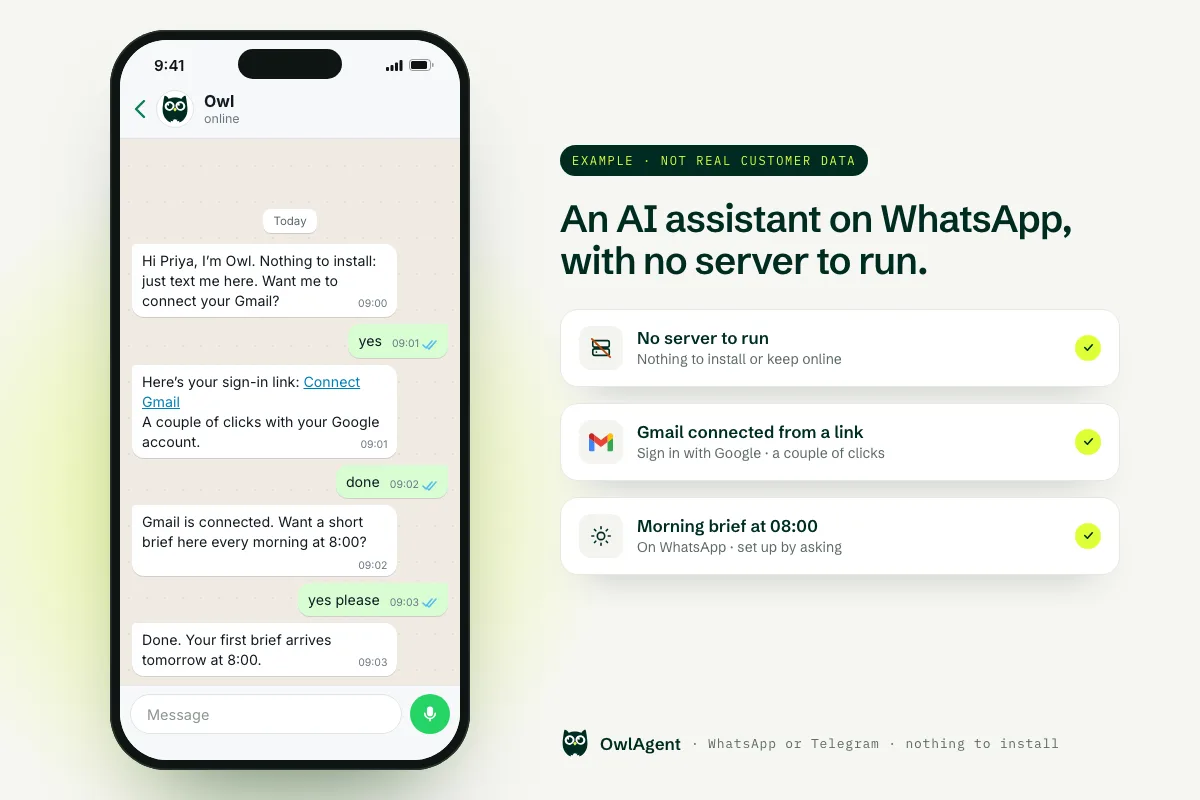
Everything above assumes you want to run the Gateway yourself: keep a machine online, keep the WhatsApp link alive, and keep OpenClaw updated. If what you actually wanted was an AI assistant you can text, OwlAgent is a different product built for that. It is not built on OpenClaw and it is not a hosted copy of it; it has its own engine, and there is no server for you to run.
- A WhatsApp and Telegram assistant: you text Owl like any contact.
- Connects Gmail, Google Calendar, Drive, Notion, HubSpot, Outlook, Slack and more through their normal sign-in (OAuth) in a couple of clicks.
- Asks before sending anything on your behalf.
- 7-day free trial, no card needed, and no usage cap on paid plans (see pricing).
Keep OpenClaw if you want to code your own agents and plugins or run everything on your own hardware: it is built for that.
Try Owl on WhatsApp →Frequently asked questions
Does OpenClaw work with WhatsApp?
Yes. OpenClaw's docs call its WhatsApp channel production-ready via WhatsApp Web (Baileys). You install the @openclaw/whatsapp plugin, link your account by scanning a QR code with openclaw channels login --channel whatsapp, and the Gateway answers messages on that account.
Can I use my personal WhatsApp number with OpenClaw?
Yes. OpenClaw recommends a separate number but says personal-number and self-chat setups are fully supported. In that mode onboarding sets dmPolicy: "allowlist", adds your own number to allowFrom and turns on selfChatMode.
Why did OpenClaw stop answering on WhatsApp?
Replies need the Gateway running with an active WhatsApp listener; otherwise sends fail fast. Check openclaw gateway status and openclaw channels status --probe. If the account shows as not linked, run openclaw channels login --channel whatsapp again.
How do I disconnect WhatsApp from OpenClaw?
Run openclaw channels logout --channel whatsapp. It clears the WhatsApp auth state for that account and stops the live listener when the Gateway is reachable. You can also log out the linked device from WhatsApp on your phone.
Is there a WhatsApp AI assistant that doesn't need a server?
Yes. OwlAgent is a separate product (not built on OpenClaw) that you text on WhatsApp or Telegram, with nothing to install. It connects Gmail, Google Calendar, Notion, HubSpot and more in a couple of clicks, asks before sending anything for you, and has a 7-day free trial with no card needed.
All product names and trademarks belong to their respective owners. OwlAgent is not affiliated with or endorsed by OpenClaw, and it is not built on OpenClaw. OpenClaw commands and limits are quoted from its official docs, linked next to each step; check them before you run anything, as they change often.
Skip the server. Just text it.
OwlAgent works from WhatsApp or Telegram and connects Gmail, Google Calendar, Drive, Notion, HubSpot, Outlook, Slack and more in a couple of clicks. 7-day free trial, no card needed.
Try Owl on WhatsApp